

Microsoft OneNote
Create notes, organize notebooks, draw by hand, store files, sync content, collaborate with others, and manage information across devices.
A flexible digital notebook designed for structured note-taking and long-term organization.
Microsoft OneNote is a digital note-taking and organization platform developed by Microsoft as part of the Microsoft 365 ecosystem. The app is designed to replace traditional notebooks by giving users a free-form workspace where text, images, handwritten notes, audio recordings, files, and checklists can all exist on the same page.
Unlike many note apps that focus on simple documents, OneNote is structured like a physical binder. Users create notebooks, divide them into sections, and organize content into pages. This approach makes it easier to manage large amounts of information over time.
The platform is widely used for school notes, work documentation, project planning, research collection, meeting notes, and personal organization. Its biggest strength is the way it combines flexible note creation with automatic cloud syncing across devices.
OneNote is available on PC, Mac, phone, and tablet, with syncing handled through Microsoft accounts and OneDrive.
Apps are frequently updated and may change over time. While we aim to keep our reviews accurate and up to date, some information may become outdated or no longer reflect the current version.
Disclaimer ▽ (click open)
How to Use
OneNote works by giving users a digital workspace that behaves similarly to a physical notebook, but with significantly more flexibility. After creating a notebook, users can divide information into sections and pages. This structure helps separate topics, projects, classes, or workflows into clearly organized categories.
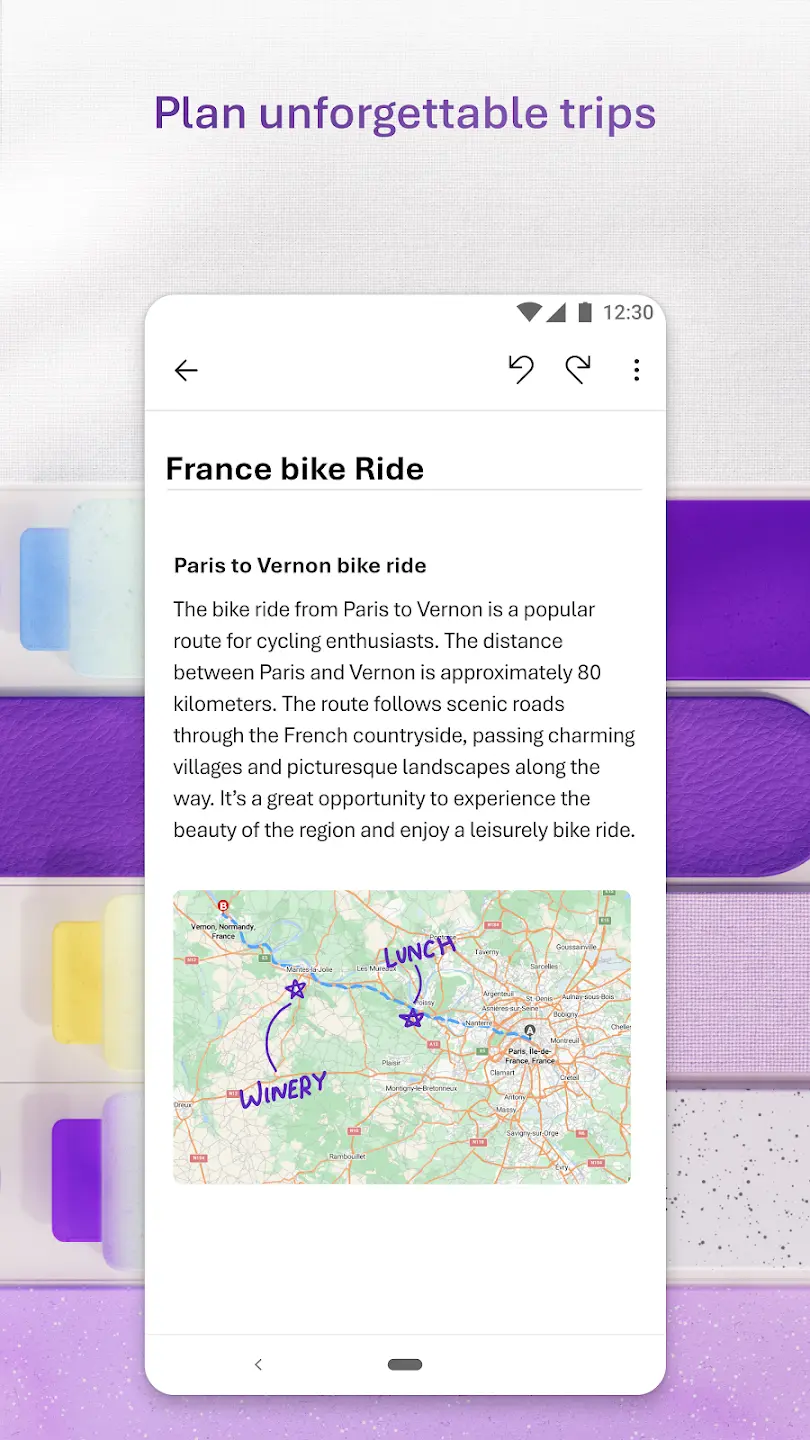
The core experience revolves around free-position note creation. Instead of typing into rigid document blocks, users can click anywhere on a page and place text, images, tables, drawings, links, or files exactly where they want them. This makes the app useful for brainstorming, research collection, and visually structured notes.
The app supports typed notes, handwriting with stylus support, audio recording, image insertion, and PDF annotation. On tablets, users can write directly on pages using digital pens, while desktop users often use it for long-form organization and productivity management.
OneNote continuously syncs notes through OneDrive, allowing users to start work on one device and continue on another. This syncing system is one of the app’s main productivity advantages, especially for students and professionals working across multiple devices.
The app also integrates with Microsoft tools like Outlook, Teams, and Office, making it easier to connect notes with meetings, documents, and collaboration workflows.
Strongest Points:
✓ Excellent notebook-style organization
✓ Strong cross-device syncing
✓ Flexible free-form page layout
✓ Good handwriting and stylus support
✓ Deep Microsoft 365 integration
Weaker Points:
✕ Interface can feel overwhelming at first
✕ Sync issues occasionally reported
✕ Mobile app less powerful than desktop version
✕ Search organization weaker than some competitors
✕ Handwriting tools not as advanced as specialized apps



How to Use
OneNote works by giving users a digital workspace that behaves similarly to a physical notebook, but with significantly more flexibility. After creating a notebook, users can divide information into sections and pages. This structure helps separate topics, projects, classes, or workflows into clearly organized categories.
The core experience revolves around free-position note creation. Instead of typing into rigid document blocks, users can click anywhere on a page and place text, images, tables, drawings, links, or files exactly where they want them. This makes the app useful for brainstorming, research collection, and visually structured notes.
The app supports typed notes, handwriting with stylus support, audio recording, image insertion, and PDF annotation. On tablets, users can write directly on pages using digital pens, while desktop users often use it for long-form organization and productivity management.
OneNote continuously syncs notes through OneDrive, allowing users to start work on one device and continue on another. This syncing system is one of the app’s main productivity advantages, especially for students and professionals working across multiple devices.
The app also integrates with Microsoft tools like Outlook, Teams, and Office, making it easier to connect notes with meetings, documents, and collaboration workflows.
Strongest Points:
✓ Excellent notebook-style organization
✓ Strong cross-device syncing
✓ Flexible free-form page layout
✓ Good handwriting and stylus support
✓ Deep Microsoft 365 integration
Weaker Points:
✕ Interface can feel overwhelming at first
✕ Sync issues occasionally reported
✕ Mobile app less powerful than desktop version
✕ Search organization weaker than some competitors
✕ Handwriting tools not as advanced as specialized apps
Use it For:
🎓 Students managing large volumes of class notes and study material
💼 Professionals organizing meetings, projects, and research in one workspace
✍️ Tablet users who prefer handwritten digital notes
📚 Researchers collecting information from multiple sources
🗂️ Users wanting structured long-term note organization instead of simple quick notes
App Usable on:
Phone
Tablet
PC
TV
Applications and Features
OneNote is built around the idea of creating a centralized digital knowledge space. Users can store nearly every type of information in one location, including notes, screenshots, PDFs, research material, voice recordings, links, and drawings.
A major feature is its hierarchical notebook system, where notebooks contain sections and pages. This structure makes the app especially useful for long-term organization compared to simpler note apps.
The app supports real-time collaboration, allowing multiple users to edit notebooks together. This is commonly used for team projects, study groups, meeting notes, and shared planning documents.
Another important capability is its free-form canvas system. Users are not locked into fixed document formatting and can arrange information visually across the page. This makes brainstorming and research collection more natural than in traditional text editors.
OneNote also includes handwriting recognition, cloud syncing, tagging systems, OCR text recognition from images, and integration with Microsoft services like Outlook and Teams.
Compared to competitors, OneNote stands out most in organization depth, flexibility, and cross-platform synchronization rather than minimalist design or advanced database-style productivity systems.
▽ Gadgets Related to this App ▽
App Summary
Microsoft OneNote is designed for users who need more than a simple note-taking app. Instead of focusing only on quick notes, the platform aims to create a structured digital workspace where information can be stored, organized, searched, and accessed across devices over long periods of time.
Its biggest strength is the combination of free-form note creation and deep organizational structure. Users can type anywhere, insert multimedia content, draw directly on pages, and separate information into notebooks and sections that remain manageable even as content grows.
The app works particularly well for students, professionals, researchers, and users already inside the Microsoft ecosystem. While the interface can initially feel more complex than minimalist competitors, the flexibility and synchronization system provide strong long-term value for users managing large amounts of information.
OneNote is available for PC, Mac, phone, and tablet, with the tablet experience being especially useful for handwriting and stylus-based note-taking.
Pricing:
Free
Cheap
Mid
Pricy
High
Free
Cheap
Mid
Pricy
High
Free
Cheap
Mid
Pricy
High
Free
Cheap
Mid
Pricy
High
Free
Cheap
Mid
Pricy
High
OneNote is available for free with a Microsoft account and includes most core note-taking features. Additional storage and advanced Microsoft 365 integrations are available through Microsoft 365 subscription plans.
Learning Difficulty:
The basic functions are easy to understand, but the full organizational system and advanced features require some time to master. Users managing large notebooks usually need to develop their own workflow structure.
Required Skill Sets:
No technical knowledge is required, but users benefit from basic organizational and productivity skills to fully utilize the notebook structure.
Educational Content:
▽ Related Apps ▽

Paste stores everything a user copies across Mac, iPhone, and iPad as a searchable visual history, syncs it via private iCloud, and lets users organise frequently reused items into custom Pinboards for instant retrieval.

Organize, track, plan, save, and manage books, movies, games, podcasts, apps, and leisure activities.


1/4
Questions & Answers: ⮛ (click to open)
Does OneNote work offline?
Yes. Users can create and edit notes without an internet connection. Once the device reconnects, OneNote syncs changes through OneDrive automatically.
Is OneNote better for typing or handwriting?
The app supports both well, but handwriting functionality is especially useful on tablets with stylus support. Desktop users generally benefit more from typing and organization features.
How does OneNote organize information?
The app uses a notebook system with sections and pages. This structure helps users separate projects, classes, workspaces, and research into manageable categories.
Can OneNote be used collaboratively?
Yes. Multiple users can edit shared notebooks in real time. This is commonly used for team collaboration, school projects, and shared meeting documentation.
Good to Knows: ⮛ (click to open)
• OneNote automatically saves notes continuously without requiring manual saving
• The app supports offline note editing with syncing once internet access returns
• Notes can include files, PDFs, screenshots, audio recordings, and handwritten annotations
Takeaways: ⮛ (click to open)
• OneNote focuses heavily on long-term organization rather than minimal quick-note workflows
• The notebook and section system makes it suitable for large-scale information management
• Cross-platform syncing is one of the app’s strongest practical advantages
Did You Get Any of That?
Related Science Articles:
Explore Other App Solutions With our Blogs
Discover how different apps approach common challenges, what they do well, and where they fall short — helping you understand which tools are best suited for your specific goals and daily routines.
Swipe Less, Talk Better: 5 AI Dating Apps That Might Actually Fix Your Texting
Five AI dating and relationship apps compared — find out which ones build real skills and which ones just write your messages for you.

Gadgifyr Apps
July 30, 2026
-
9 min

The Quiet Ones: 5 Apps Doing Something No One Else Bothered To
Five genuinely inventive apps compared — find out which ones are simply clever and which are actually useful.
Gadgifyr Apps
July 19, 2026
-
9 min

After You Hit "Book": 5 Apps That Make the Trip Itself Better
Five travel apps compared on what they offer before, during, and after the trip — beyond flights, hotels, and bookings.
Gadgifyr Apps
July 14, 2026
-
9 min

Notes That Talk to Each Other: 5 Apps for Thinking, Not Just Typing
Obsidian, Notion, Evernote, OneNote, and Joplin compared — find out which one turns scattered notes into a system that actually connects your ideas.
Gadgifyr Apps
July 11, 2026
-
9 min



Where Curiosity Finds Its Match
Dive into Gadgifyr’s world of honest gadget reviews, scientific clarity, app reviews, and real tools designed to make everyday life smarter and simpler.
Clarity Behind Every Tool
Gadgifyr reviews apps and gadgets through structured analysis and science-backed insight. It focuses on how tools actually work, where they deliver real value, and how they fit into everyday routines.
Each review highlights functionality, usability, and limitations in a clear and practical way. This approach helps users understand which tools are worth using and make informed decisions with confidence.


Why People Trust Gadgifyr App Reviews
Because we go beyond popularity — we uncover new apps, explain how they work, and show what truly adds value. From hidden tools to well-known platforms, we help you understand what fits your needs.


